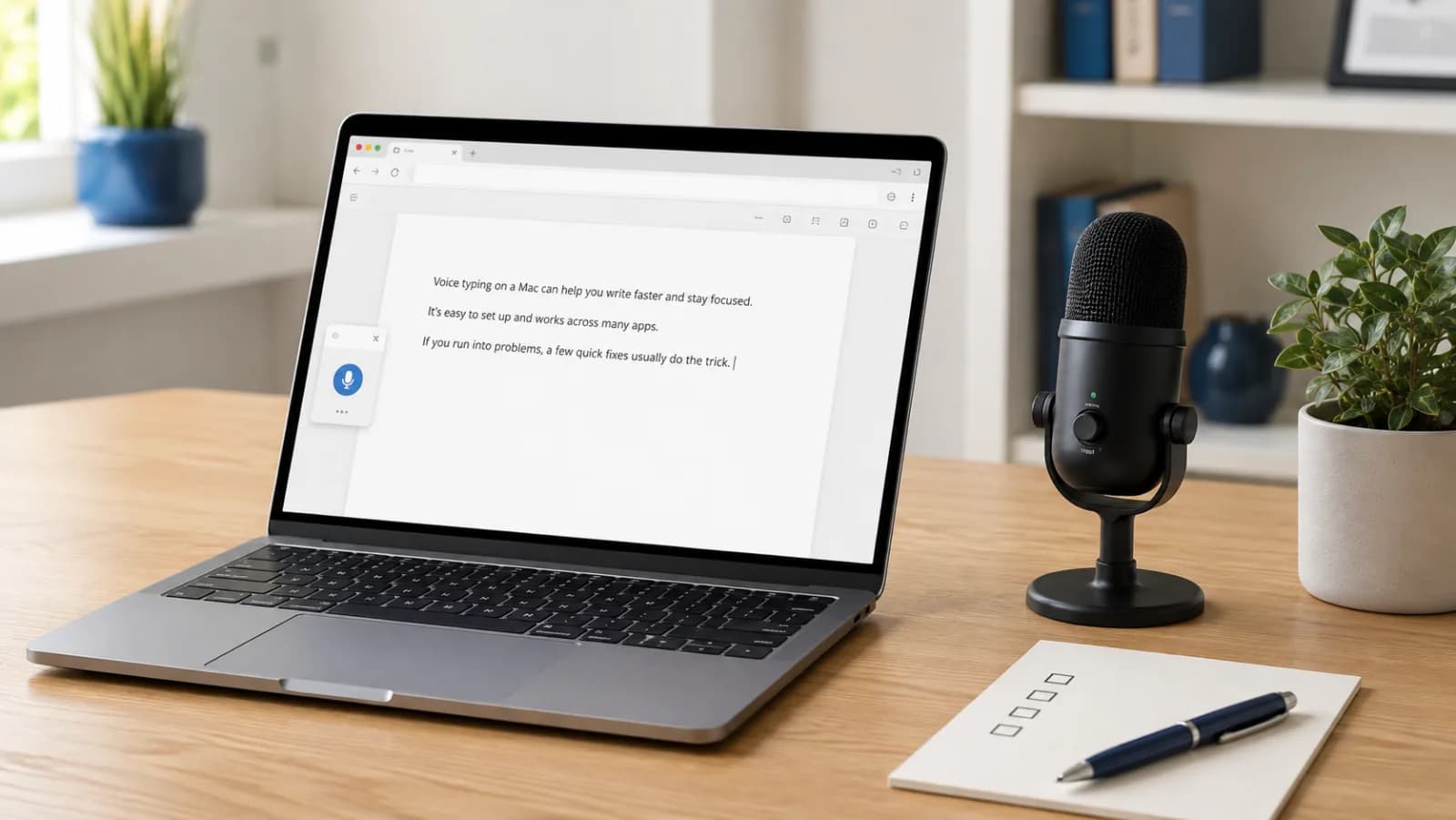
To start Google Docs voice typing on Mac, open a document, choose Tools → Voice typing, and click the microphone. That gets speech onto the page. Getting a useful draft also means choosing the right input device, checking permissions, and deciding which parts of writing you want to say aloud.
Start with a blank document and a short sentence. A small test makes it much easier to tell whether you have a microphone problem or simply need a different writing routine.
Does Google Docs voice typing work in Safari?
Yes. Google expanded voice typing to Safari and Edge in May 2024. Current Google documentation lists the latest versions of Chrome, Edge, and Safari. Advice that requires Chrome alone is out of date. Google's browser support announcement explains the change.
Use the supported browser you already work in. Switching browsers can be a useful diagnostic step later, but it does not need to be your first move. If you are helping someone else, record their browser name and version before walking through the settings. Otherwise, you may end up comparing different menus without realizing it.
Set up voice typing in a Google Doc
Open an editable Google document, then:
- Choose Tools → Voice typing.
- Select the spoken language in the microphone box.
- Click the microphone and allow access when prompted.
- Speak a short sentence, then click the microphone again to stop.
These are the controls described in Google's voice typing instructions.
For the first attempt, use an ordinary sentence with no names, numbers, or specialized terms. For example: “This is a short note about tomorrow's meeting.” The point is to confirm that speech reaches the document before judging spelling or formatting.
Then try a sentence you actually need to write. A generic microphone check cannot tell you how much editing your own project names, abbreviations, or sentence structure will need. Keep the original thought short enough that you can compare the result without replaying it from memory.
Separate dictation from editing
For an early draft, try speaking one paragraph at a time. Stop, read it, and make the smallest corrections needed. When you have a usable paragraph, move on. Constantly restarting a sentence because its opening looks imperfect makes the exercise more frustrating than it needs to be.
Google supports spoken punctuation and editing commands, but they are separate capabilities: editing commands require English account and document languages, and punctuation support varies by language. Refer to the documented command list for the language and action you want.
You can also use your keyboard for formatting. A practical first workflow is to speak the substance, then type names, adjust headings, and tidy punctuation. You do not need to learn a complete spoken command system before voice typing becomes useful.
When voice typing does not work, check these layers
Treat the microphone, browser, and document as separate checkpoints. Changing everything at once makes it hard to learn what fixed the problem. Use this sequence to narrow it down.
Scroll sideways to read the full table →
| What you observe | Check first | What to try next |
|---|---|---|
| No input on a microphone test | Selected input device | Try the Mac's built-in microphone and repeat the same sentence. |
| The microphone works elsewhere, but the browser cannot use it | macOS permission for that browser | Check the browser's entry under Microphone permissions. |
| The browser can use the microphone, but this site cannot | Site permission | Check the microphone setting for the document's site. |
| The microphone works, but Voice typing is unavailable | Browser version and account policy | Try a supported browser; for a managed account, ask the administrator. |
| Text appears, but words are repeatedly wrong | Spoken language and recording conditions | Test the same short paragraph in a quieter position. |
The table is a troubleshooting order, not a diagnosis of every possible browser error. After each change, return to the same blank document and repeat the same sentence. Keep the experiment small enough that you can identify the difference.
1. Check which microphone the Mac is using
In System Settings → Sound → Input, select the microphone you intend to use. Apple documents this control in its sound input guide. A connected display, headset, or other device may give you more than one choice.
Try our microphone test to check for an input signal. If you need to hear what is being captured, make a short sample with the microphone recording test. Neither test proves that Google Docs has permission; it helps you separate an audio input problem from a Docs-specific problem.
Compare the built-in microphone and your usual headset using the same sentence, at your normal desk. Listen for distant speech, clipping, or background conversation. Choose the sample that sounds clearer rather than assuming the more expensive device must be better in your current setup.
2. Check macOS microphone permission
Open System Settings → Privacy & Security → Microphone and check access for the browser you are using. Apple's microphone permission guide describes these app-level controls.
If macOS asks you to quit and reopen the browser after changing access, do so. Save any work first. Then return to the test document. Permission for one application should not be treated as evidence that another application can record.
3. Check the website permission
Chrome has separate microphone controls under Settings → Privacy and security → Site settings → Microphone. Check the selected microphone and the site's allowed or blocked status using Chrome's permission instructions.
In Safari, check Safari → Settings → Websites → Microphone for the open site. Apple's Websites settings guide explains the available site permissions.
Change only the setting that applies to the document you are testing. There is no reason to grant every website microphone access just to get one writing tool working. Reload the document after a permission change and try the short sentence again.
4. Separate an account restriction from a device problem
Google notes that an organization's administrator can disable the feature. If the microphone works and you are using a managed work or school account, check with the administrator before spending time reinstalling your browser. This possibility is noted in Google's voice typing help.
When asking for help, include the browser version, whether the microphone works in another permitted site, and whether the menu is missing or the microphone simply produces no text. Those observations are much more useful than “dictation is broken.” Use a test document without confidential content if you need to share a screenshot.
Turn a spoken idea into a draft you can use
Once recording works, the next question is whether voice typing helps with your actual writing. Try a task that benefits from explanation: a project update, a response to a customer question, or the first draft of a proposal. A tightly formatted spreadsheet or a string of file paths is a less forgiving first exercise.
Here is a sample exercise, not a recorded product result. Imagine you need to explain a scheduling change. Before speaking, write three prompts:
- What changed?
- What does the reader need to know?
- What should happen next?
Now answer each prompt aloud in a few sentences. For example: “The review is moving to Thursday. We need one more day to check the examples. Please leave your comments in the document by Wednesday afternoon.” Keep the thought conversational; you can decide whether it needs a more formal opening afterward.
Review the draft in three passes. First, check meaning: did the text preserve the change and the requested action? Next, verify names, dates, and numbers. Finally, remove repetition and organize paragraphs. This order prevents you from polishing a sentence whose details still need correction.
If you want to compare voice typing with typing, use two similar tasks and count the whole job: drafting, correction, formatting, and moving the result to its destination. Timing speech alone misses the part that often determines whether you will keep using the workflow.
Write down what you had to fix. Repeated name errors suggest a vocabulary problem; frequent paragraph rewrites suggest that you may prefer a tool with text cleanup. This small record gives you a concrete basis for choosing your next setup instead of relying on an accuracy percentage from someone else's test.
Keep writing when you leave Google Docs
Google Docs voice typing is a useful starting point when the document itself is your destination. If your day also includes email, chat, notes, and developer tools, consider how much work happens outside that document.
Our broader Mac dictation guide covers setup across the Mac. For a product comparison, the Apple Dictation comparison explains a different decision from this browser setup guide.
Openbroca is an AI dictation app for Mac that puts refined text into the field you are using. Press ⌥ Space, speak, and use the result in your current writing task. Its personal dictionary stores preferred names and terms; optional Screen Context can help with visible vocabulary. If direct insertion is unavailable in an app, the text is copied so you can paste it.
Try it with the same kind of paragraph you used in Google Docs. Compare the editing you still need to do and how easily the result reaches the right place. If you are also considering Typeless, our Openbroca and Typeless comparison covers their documented features and plans.
Openbroca's recognition and text cleanup use cloud processing. The privacy policy explains how data is handled, and pricing explains the free allowance and paid options. Choose the setup that fits both your writing routine and the requirements of the material you work with.
A useful first session
Start with one editable document, one microphone, and one paragraph. Confirm that recording works, get the thought onto the page, and read the result before changing tools.
When something fails, move through input, app permission, site permission, and account settings in order. When recording succeeds, judge the complete writing task. The useful measure is a draft you can finish and send, with fewer interruptions along the way.